What’s new?
The Update Contact Field action now includes a new Add action type for multi-select fields. You can add selections to multi-dropdown and multiple-checkbox fields without replacing values already stored on the contact.
How it works
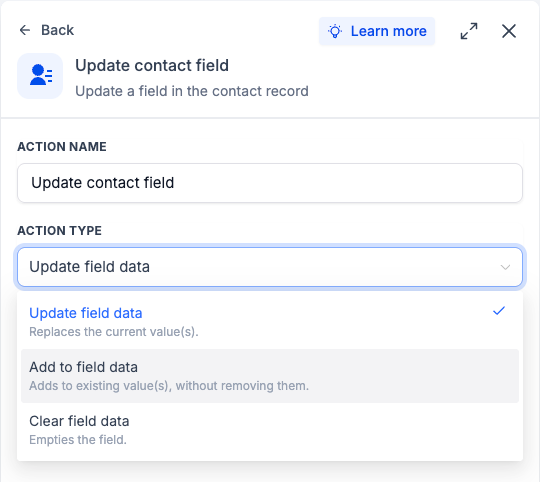
Choose Add to append the selected value(s) to the contact’s existing selections. When Add is selected, the field picker only shows multi-dropdown and multiple-checkbox fields.
How to use it
- Add the Update Contact Field action to your workflow.
- Select Add as the action type and choose a multi-select field.
- Select the value(s) you want to add to the contact’s existing selections.
Why we built it
Previously, updating a multi-select field replaced all existing selections, which could unintentionally remove saved values. The new add operation makes it easier to build on existing contact data without overwriting it.
Simple example
A contact selects “Email Marketing” on a form, which is saved in a multiple-checkbox field called 'Services Interested In'. Later in the workflow, the update contact action can now add “SMS Marketing” to that same field while keeping “Email Marketing” selected. Nothing gets overwritten.
Additional Notes on the different operations
- Update field data - Replaces the current value(s).
- Add to field data - Adds to existing value(s) without removing them.
- Clear field data - Empties the field.
Preview
Was this article helpful?
That’s Great!
Thank you for your feedback
Sorry! We couldn't be helpful
Thank you for your feedback
Feedback sent
We appreciate your effort and will try to fix the article